Sponsara Is Now a Claude Connector: How to Connect It
By Matt Reichard · · Updated · 5 min read
Sponsara is now approved as a Claude Connector. That means you can find it in Claude’s Connector Directory, connect with your Sponsara sign-in, and bring real pricing and deal context into the conversation without pasting a server URL.

What changes when Sponsara is connected
Claude is where many sponsorship questions start. Sponsara gives that conversation the facts needed to make a real deal decision: recent channel performance, a defensible price range, and the terms already on the table.
- Price a YouTube channel from recent views, engagement, and niche CPM benchmarks
- Review a creator quote and get a proceed, counter, or clarify recommendation with a reply draft
- Find the deal or follow-up that needs attention in your Sponsara workspace
- Keep analysis read-only, or explicitly enable workflow updates when you want Claude to change a Sponsara record
Sponsara is the pricing and deal context. Claude is the conversation. The connection starts read-only, and Claude keeps write-capable tools on Needs approval unless you deliberately change that permission.
How to connect Sponsara in Claude
You do not need an API key, a JSON file, or a custom server URL. Claude’s own connector guide follows the same directory flow.
1. Open Connectors in Claude
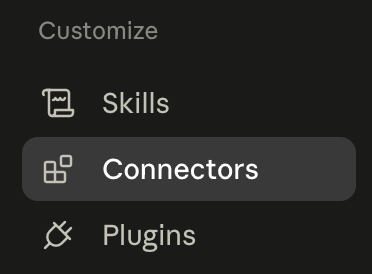
Open Claude, select Customize in the sidebar, then select Connectors.
2. Browse the Connector Directory
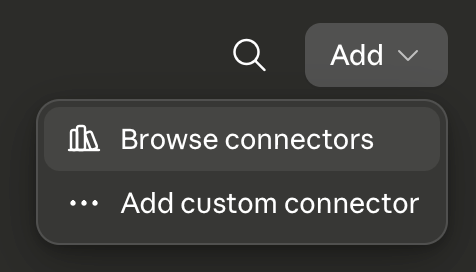
Click the + button next to Connectors, then choose Browse connectors.
3. Search for Sponsara
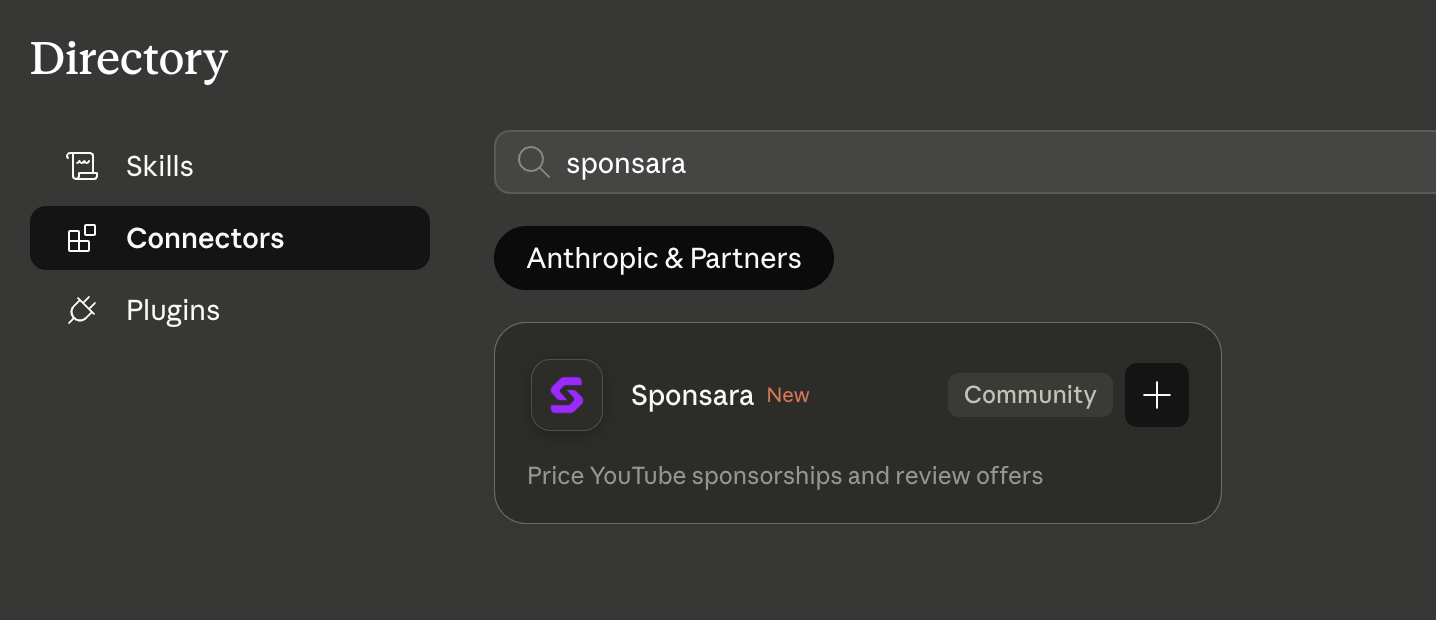
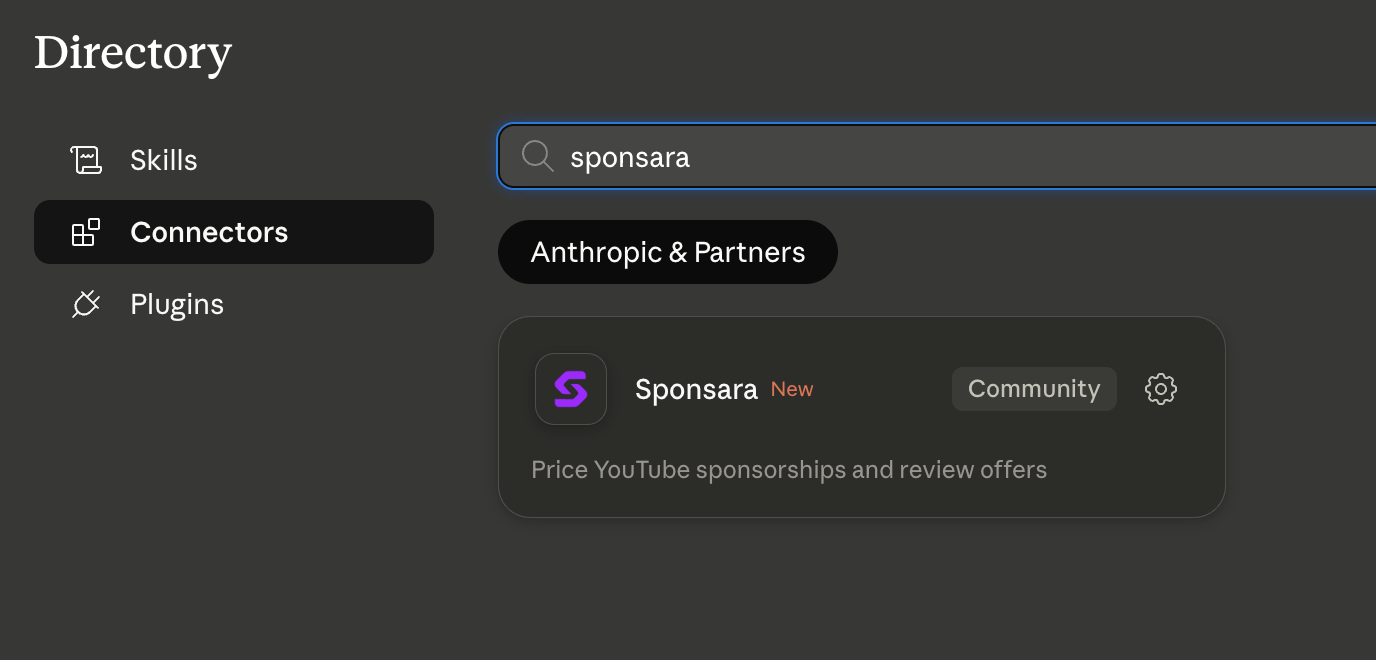
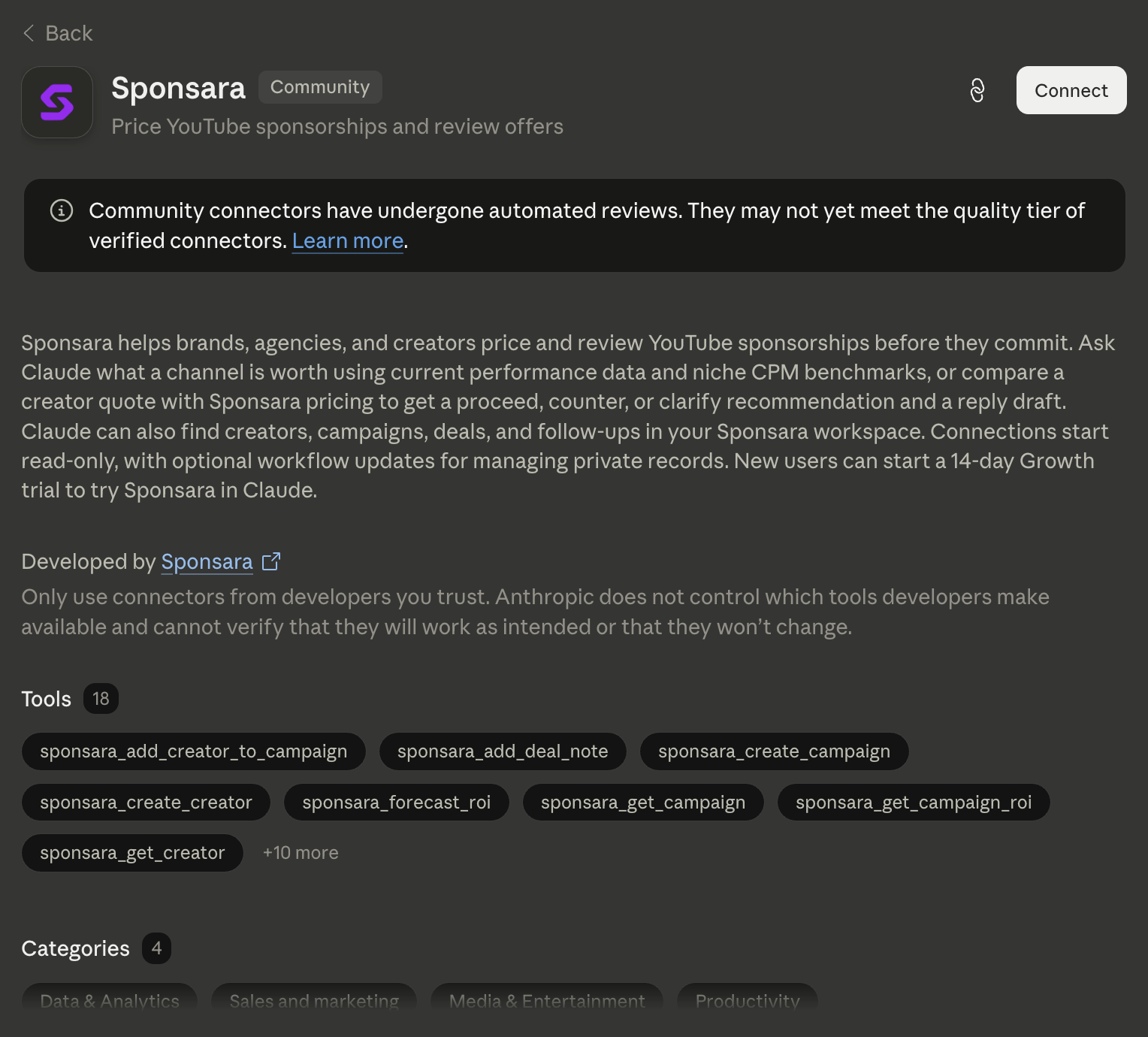
Search for “Sponsara” under Connectors. Open the Sponsara listing to review what it can do.
4. Connect and sign in to Sponsara
Click Connect, then sign in to your Sponsara account when Claude opens the authorization flow. Leave workflow updates off for analysis-only access, or enable them only if you want Claude to create or update Sponsara records.
Start with a real offer
Once connected, start a new Claude chat and enable Sponsara from + → Connectors if it is not already active. Then bring the decision already in front of you.
- “Price https://youtube.com/@mkbhd and explain the market rate.”
- “Review this creator offer against Sponsara pricing and draft a counter.”
- “Show the deals that need follow-up this week and recommend the next action.”
For the current step-by-step setup and example prompts, open the Sponsara Claude setup guide.
Frequently asked questions
Do I need to paste a server URL into Claude?
No. Sponsara is available in Claude’s Connector Directory. Search for Sponsara, open the listing, click Connect, and sign in to Sponsara.
Do I need a Sponsara API key?
No. Claude connects with your Sponsara sign-in. API keys are for clients such as Cursor that use key-based MCP setup.
Who can use the Claude Connector?
MCP access is included on Growth, Agency, and Enterprise.
Can Claude change my Sponsara records?
Connections start read-only. You can explicitly enable workflow updates, and Claude keeps write-capable tools on Needs approval unless you deliberately change that permission.